For years, I’ve relied on Google Analytics to understand how websites are performing. Like most web technologists, that usually meant opening GA4, building reports, switching between dimensions, exporting data, and manually piecing together insights.
With the release of Google’s official Google Analytics MCP server, that workflow changes dramatically.
Instead of navigating dashboards, I can now ask Claude questions like:
“What were our top landing pages last week?”
“Compare organic traffic to the previous 30 days.”
“Which pages experienced the largest decrease in engagement time?”
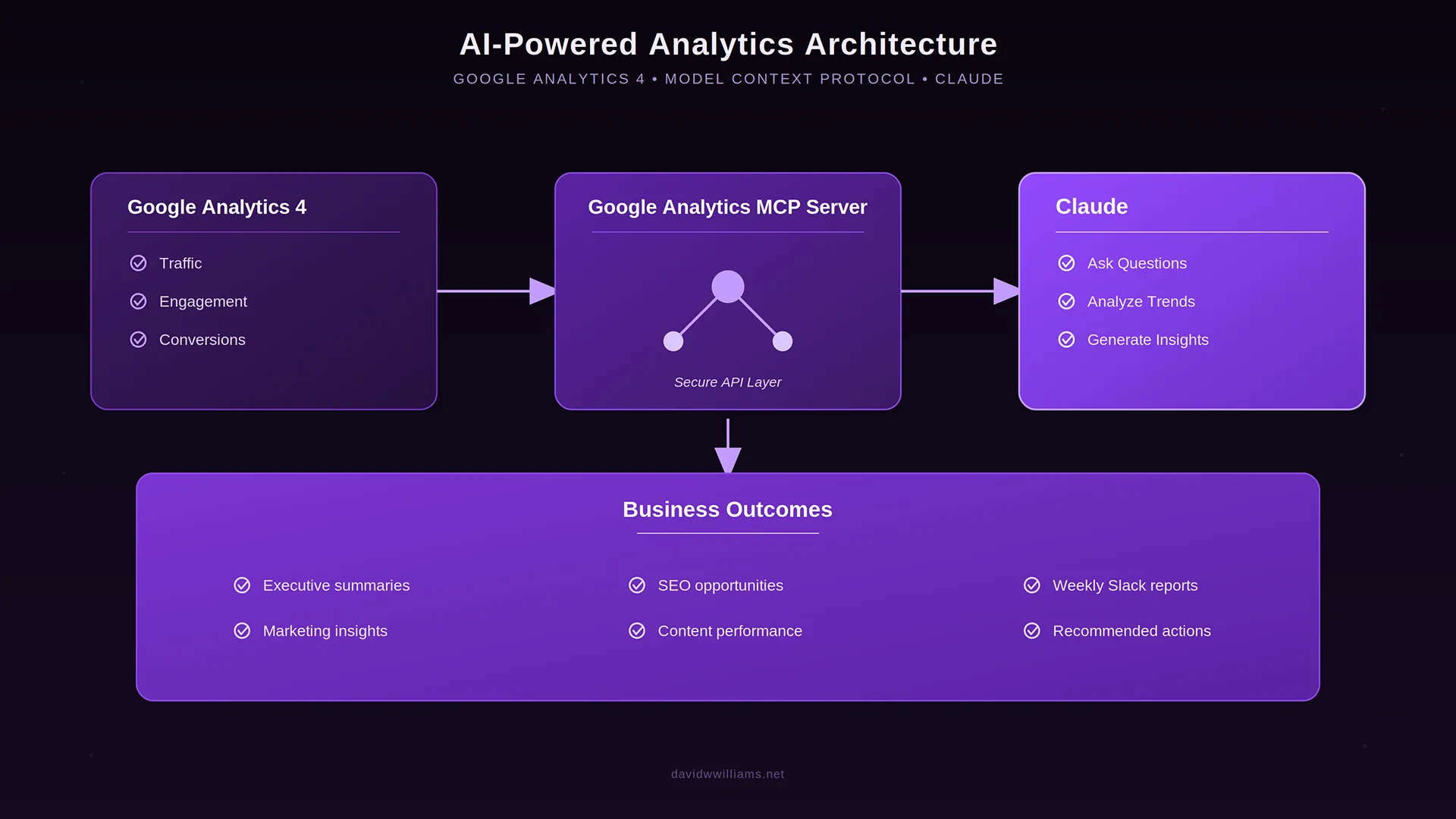
Behind the scenes, Claude is making authenticated requests directly to the Google Analytics Data API and Analytics Admin API through Google’s official MCP server. Rather than acting as another dashboard, Claude becomes an analytics analyst that understands context, follows up with additional questions, and helps interpret the data.
After spending an afternoon setting everything up on my Windows development machine, I can confidently say this is one of the more practical AI workflows I’ve implemented this year.
What is MCP?
Model Context Protocol (MCP) is an open protocol that allows AI assistants to securely connect to external tools and data sources.
Instead of relying solely on information contained within a prompt, Claude can call external services in real time. In this case, Google’s official Google Analytics MCP server exposes tools that allow Claude to:
- Discover available GA4 accounts and properties
- Execute Analytics Data API reports
- Run real-time reports
- Query dimensions and metrics
- Retrieve property metadata
The result feels much less like using analytics software and much more like collaborating with another analyst.
Why this is different from traditional analytics
Most analytics platforms excel at displaying data.
They aren’t particularly good at helping answer questions.
When someone asks:
“Why did organic traffic decline last week?”
the answer often requires:
- multiple reports
- several date comparisons
- traffic source segmentation
- landing page analysis
- device comparisons
- historical context
Claude can perform each of those steps conversationally.
Instead of spending ten minutes navigating menus, I simply continue asking questions until I understand what happened.
My setup
I completed the installation on a Dell Windows laptop using:
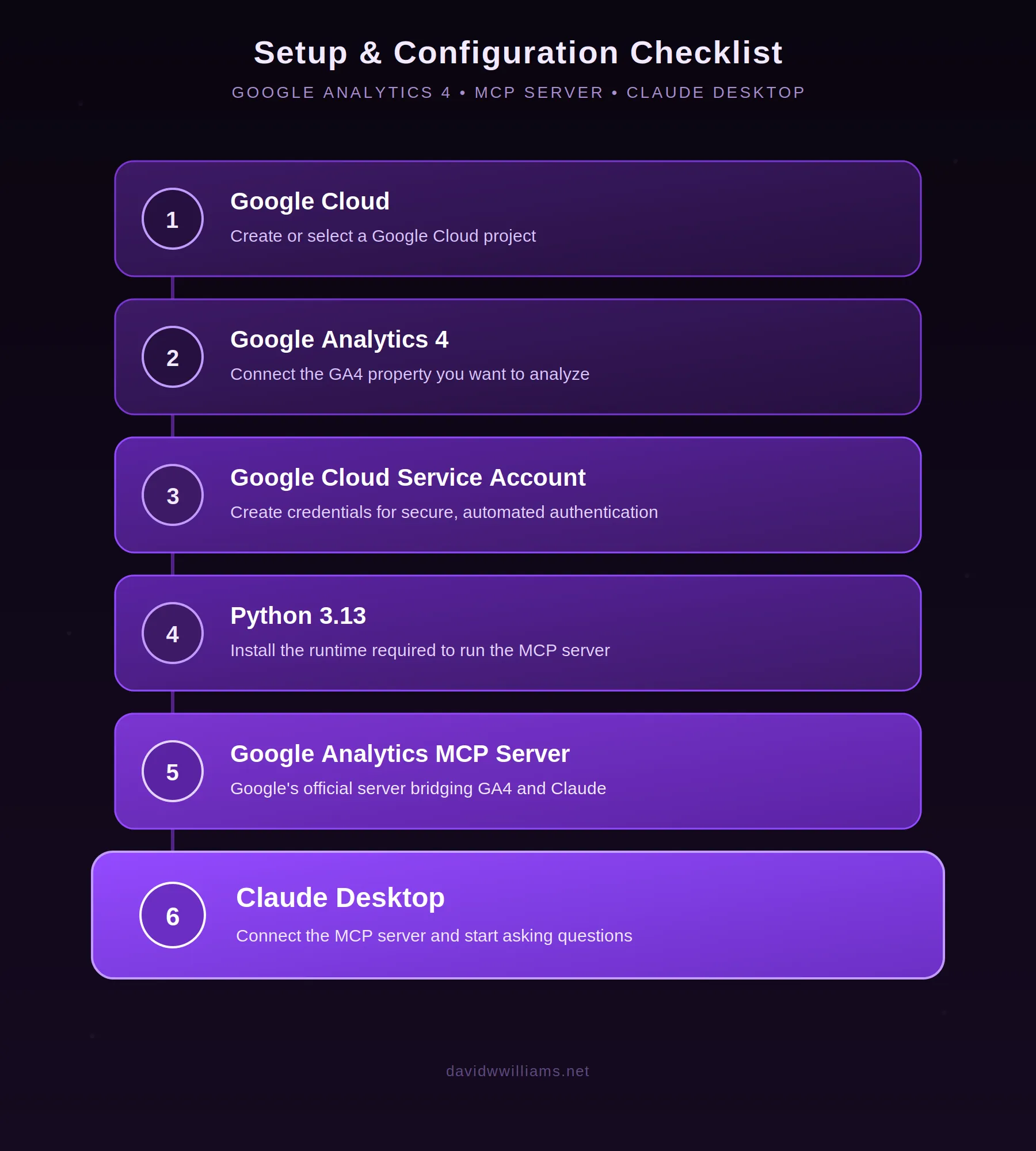
While Google’s documentation walks through OAuth-based authentication, I ultimately switched to a service account. In my environment it proved significantly more reliable than Application Default Credentials (ADC), especially when launching the MCP server from Claude Desktop.
Once configured, Claude was able to discover my GA4 property and execute live reports directly against the Analytics APIs.
Common Setup Issues (Windows)
While the overall setup was straightforward conceptually, I ran into several issues during the installation. Most weren’t caused by Google Analytics or Claude, they were the result of Windows-specific configuration, authentication, and understanding how the different pieces fit together.
If you’re following Google’s GitHub documentation on Windows, these are the issues that consumed the most time for me.
1. pipx wasn’t installed
The Google Analytics MCP server is designed to run using pipx. Although I already had Python installed, pipx wasn’t available from the command line.
Installing it was simple:
python -m pip install --user pipxAfter installation, I verified it was working by running:
pipx run cowsay -t "Hello, MCP!"If you see a cow instead of an error, you’re ready to move on.
2. Claude Desktop stores its configuration in a different location than expected
Many examples online reference the following directory:
%APPDATA%\ClaudeOn my Windows machine, Claude Desktop was installed as an MSIX application, and the configuration file was actually located here:
C:\Users\<username>\AppData\Local\Packages\Claude_<package>\LocalCache\Roaming\Claude\claude_desktop_config.jsonIf you can’t find the configuration file in the traditional location, don’t assume it doesn’t exist. Search for claude_desktop_config.json or browse the AppData\Local\Packages directory.
3. OAuth authentication worked…until it didn’t
Google’s documentation demonstrates using OAuth and Application Default Credentials (ADC).
Initially this worked, but I eventually encountered errors including:
ACCESS_TOKEN_SCOPE_INSUFFICIENT401 Invalid Authentication Credentials- OAuth consent screen warnings
- Browser authentication opening in Microsoft Edge instead of Chrome
While each issue was individually solvable, the overall authentication flow became increasingly fragile.
4. Service accounts proved far more reliable
Instead of continuing to troubleshoot OAuth tokens, I created a Google Cloud service account, generated a JSON key, and granted that account Viewer access directly within my GA4 property.
After updating my Claude MCP configuration to use the service account credentials, authentication became reliable and repeatable.
For my environment, this ended up being the better long-term solution.
5. Google Cloud IAM roles are not the same as Google Analytics permissions
One point that caused confusion was assuming a Google Cloud IAM role would automatically grant access to Google Analytics.
They are separate permission systems.
Creating the service account in Google Cloud is only half the process.
The service account must also be added inside Google Analytics 4 → Admin → Property Access Management with appropriate permissions (Viewer was sufficient for my implementation).
Without this step, authentication succeeds but API requests will fail because the service account isn’t authorized to access your GA4 property.
6. Verify each layer before moving on
One lesson I learned was to validate the integration incrementally rather than assuming everything was configured correctly.
My checkpoints looked something like this:
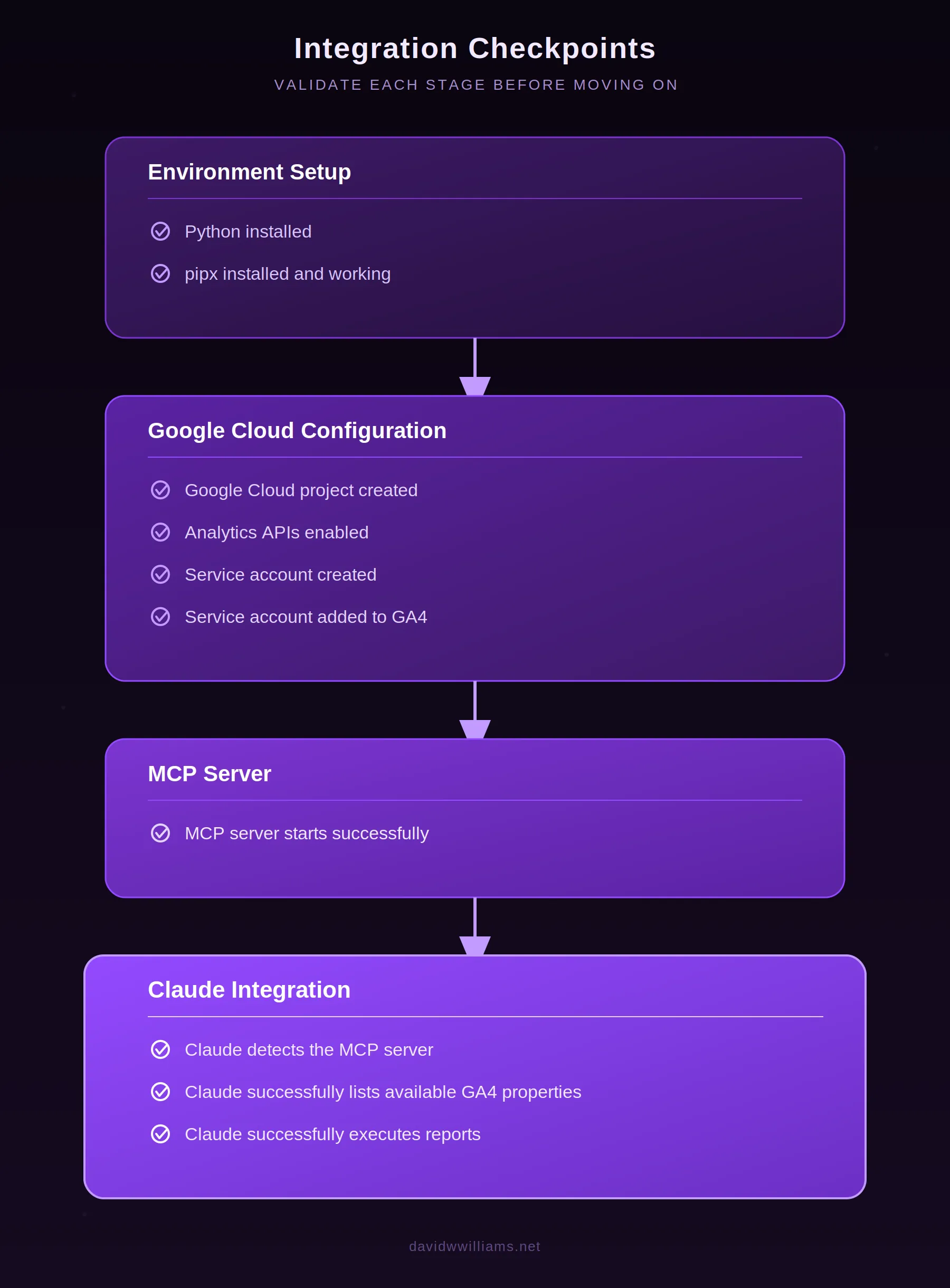
Working through the setup one layer at a time made troubleshooting much easier than trying to diagnose the entire stack at once.
Although the setup took longer than I originally expected, nearly all of the time was spent understanding authentication rather than configuring the MCP server itself. Once the authentication model was correct, the integration became remarkably straightforward.
Lesson learned: If I were starting from scratch today, I’d skip OAuth for local development and use a service account from the beginning. It eliminates several authentication edge cases and more closely resembles how this integration would be deployed in a production environment.
Business value
This is where I think MCP becomes especially interesting.
The technology isn’t valuable because it replaces dashboards.
It’s valuable because it lowers the friction between questions and answers.
Imagine a marketing team asking:
- Which landing pages gained the most organic traffic this week?
- Which campaigns generated the highest engagement?
- What changed after our latest website release?
- Which blog posts should we update next?
Those questions no longer require someone to build a custom report every time.
Instead, analysts can focus on interpretation rather than navigation.
Where I see this going
The real opportunity isn’t simply querying GA4.
It’s combining multiple sources into a single conversation.
Imagine Claude having access to:
- Google Analytics
- Google Search Console
- Google Ads
- Slack
- GitHub
- BigQuery
- CRM data
Now the conversation becomes:
“Organic traffic increased 18%, but demo requests were flat. Most growth came from educational content rather than product pages. Two high-performing articles have no clear call-to-action. Consider updating those pages before increasing paid spend.”
That’s considerably more useful than another dashboard screenshot.
What’s next
Now that the foundation is in place, my next step is automating weekly executive summaries.
The workflow I’m experimenting with looks something like this:
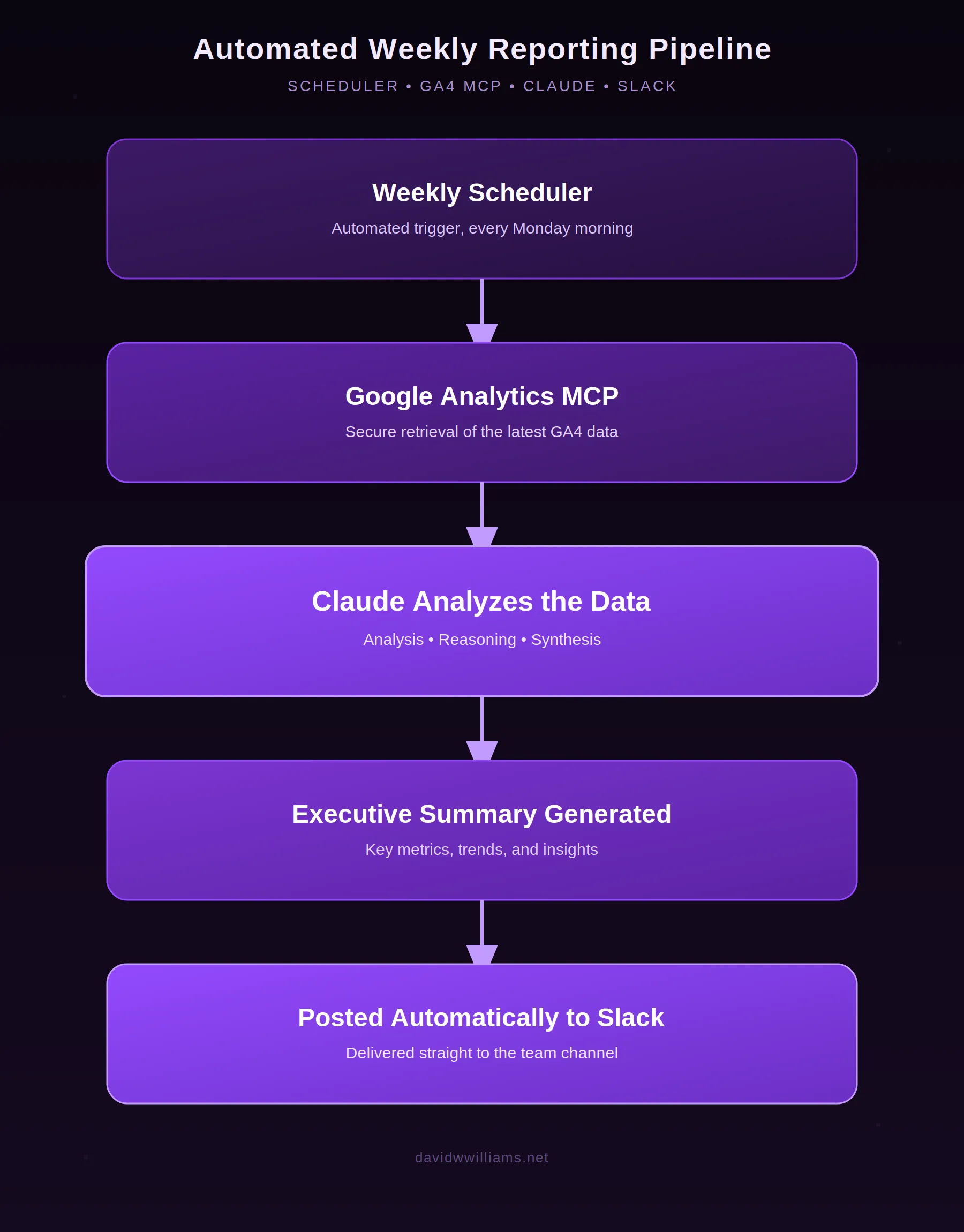
Rather than sending stakeholders another collection of charts, the goal is to deliver a concise explanation of what changed, why it likely changed, and what deserves attention.
Final thoughts
I’ve spent much of my career building enterprise websites, improving performance, implementing analytics, and helping teams make better decisions with data.
What excites me about MCP isn’t simply that AI can access Google Analytics.
It’s that analytics becomes conversational.
When the effort required to ask better questions drops to nearly zero, teams naturally explore their data more often. That curiosity often leads to better decisions, faster investigations, and a much deeper understanding of how customers actually use digital experiences.
For me, that’s the real promise of AI-powered analytics.